


Space Cleaner
4.012.00 Reviews
App Specs
- Version
- 9.0.3
- Updated On
- License
- Free
- Downloads
- 100,000+
- Developer
- KAJO TECH
- Categories
- Tools
- Platform
- Android
Screenshots
 Analysis by AppCompare
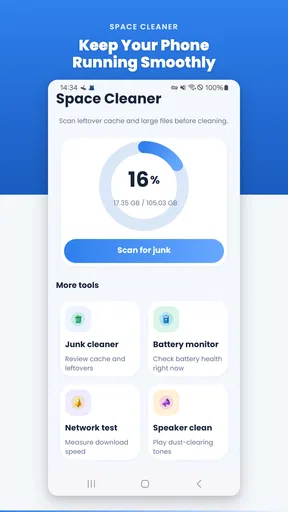
I tried Space Cleaner as a practical Android tool rather than treating it like a magic speed booster. Its purpose is straightforward: help clean unwanted files, check battery condition, and clear dust or debris from the phone’s speaker area. That combination makes sense for people who want a small maintenance toolkit instead of several separate utilities, although it also means the app needs to be judged carefully. Cleaning storage is measurable; claims around battery “health” and speaker clearing require more realistic expectations.
Developed by KAJO TECH, this free Tools app has reached over 100K installs and holds a 4.0 average from around 105 ratings. It is marked for Everyone, runs on Android 9 or later, and the current release is version 9.0.3. Those details make it accessible to a wide range of Android users, but popularity alone is not a reason to grant a cleaner unrestricted trust. With this kind of app, I pay attention to what the interface lets me control, what the phone itself already provides, and whether each action is explained before I use it.
What Space Cleaner is really useful for
I find that Space Cleaner is most useful when I treat it as a prompt to check the phone, not as a button that should automatically make every problem disappear. In this section, I’ll focus on choosing a task with a clear purpose and judging the result in everyday use. That approach matters even more when the phone is busy or already running low on room.
A focused maintenance panel instead of a full phone manager
The strongest idea here is convenience. I can approach storage cleanup, battery checking, and speaker maintenance from one place rather than searching through Android settings and separate diagnostic tools. That is especially useful when a phone feels cluttered and I want a quick overview before deciding what deserves attention.
Still, I would not describe it as a complete replacement for Android’s built-in settings. The operating system remains the safer place to inspect individual applications, review permissions, manage accounts, and remove important files. Space Cleaner is more useful as a guided first pass: it can point me toward maintenance tasks, while I keep the final decision in my own hands.
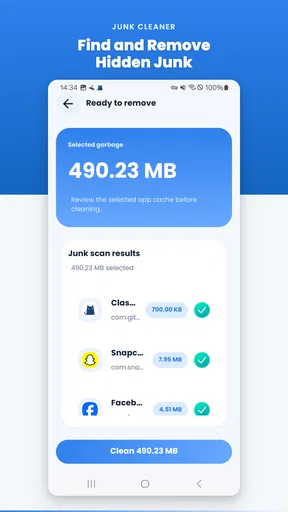
That distinction matters because “junk” is not always obvious. Cached images, temporary files, downloaded installers, duplicate media, and old documents can look similar in a broad cleanup screen, but they do not have the same value. A cache can usually be rebuilt, while a file in a download folder may be the only copy of something I need. I therefore treat any suggested cleanup as a review queue, not an automatic command.
Storage cleanup needs a deliberate workflow
My preferred routine is to open the cleaner when the phone is not busy, inspect the categories it presents, and pause before confirming anything that might include personal media. I start with obvious temporary material, then check large files separately. This takes longer than tapping a single “clean” button, but it prevents the common mistake of trading a little free space for a missing photo, document, or saved video.
Worth Reading Before You Choose

EA SPORTS FC Mobile 26 Is a Bigger Football Game, but It Takes Time

Flipboard Shows What News Apps Must Do Beyond the Feed

Switching to Android Auto Means Rethinking Your Driving Routine

Google Calendar Makes a Crowded Week Easier to Manage

Ludo King Makes the Most of the Minutes Between Plans

Baby Panda World Brings Quick Play to Modern Phones, but Its Game Library Feels Busy
A useful habit is to clean after a specific event rather than constantly. For example, after moving photos to another device, I can use Space Cleaner to look for leftover temporary material and old downloads. That gives the app a clear job and makes it easier to notice whether the phone actually feels less crowded afterward. Running a cleaner repeatedly without understanding what it removes can create a false sense of maintenance.
I also recommend checking the result in Android’s storage settings. If both screens show a similar change, I have more confidence that the cleanup did something meaningful. If the number barely moves, that is not necessarily a failure: the largest space users may be videos, games, messaging media, or offline maps, which need to be managed in their original apps rather than swept away as generic junk.
Battery information is helpful, but it is not a repair
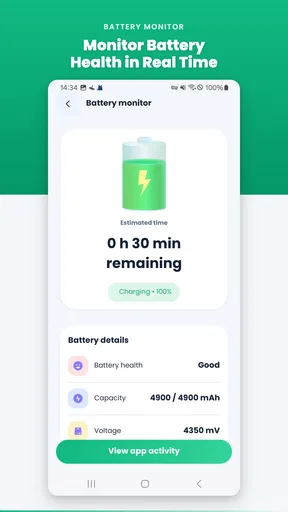
The battery section is best viewed as a monitoring aid. It may help me think about charging habits and notice when the phone’s endurance feels different from normal. It cannot restore worn battery cells, reverse physical aging, or turn a weak battery into a new one. If the handset shuts down unexpectedly, becomes unusually hot, or shows physical swelling, I would stop experimenting with cleaner tools and seek professional service.
For a more useful reading, I compare what Space Cleaner shows with my actual daily pattern. A single reading after gaming, navigation, or a long video call says less than repeated observations under similar conditions. I also avoid judging battery condition immediately after a cleanup, because background activity, syncing, and a recent charge can change the phone’s behavior independently of storage maintenance.
This is one of the app’s important trade-offs. A dedicated manufacturer diagnostic or Android’s own battery information may be better when I need hardware-specific detail. Space Cleaner is more appealing when I want battery awareness alongside storage and speaker tools, not when I need a service-grade diagnosis.
Speaker clearing should be treated as a careful maintenance action
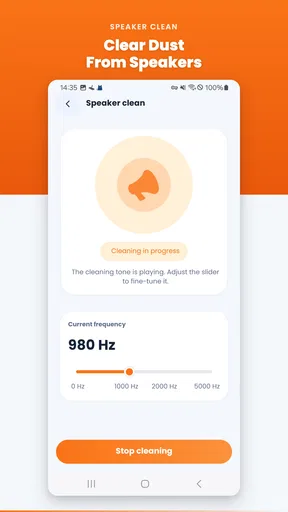
The speaker-clearing function is an interesting addition because sound and debris are easy to confuse. If a speaker sounds muffled after exposure to dust or moisture, a controlled clearing routine may be worth trying. I would use it in a quiet place, remove any case that covers the speaker openings, and hold the phone securely. I would never insert a pin, brush aggressively, or use the function as a substitute for proper liquid-damage care.
The practical test is simple: listen to the same familiar audio before and after the process, at a moderate volume. If the sound improves, the tool may have helped with a minor obstruction. If it does not, increasing the volume repeatedly is unlikely to solve a blocked grille and could make an existing hardware problem more noticeable. A phone that has been exposed to water deserves caution, not repeated sound cycles.
This feature is also where expectations can become inflated. Clearing a speaker is not the same as repairing a damaged driver, replacing a mesh, or removing debris lodged behind the grille. I like having the option available, but I would use it only for a limited, sensible attempt and then move on to physical inspection or repair if the symptom remains.
Trust, permissions, and control while using the app
I judge a maintenance utility by how much control it leaves me at the moments that matter. Here, I’ll look at the practical checks I use before granting access or confirming an action, especially when personal files or device information are involved. A brief pause to review those choices can make routine maintenance feel much more deliberate.
Why the visible choices matter more than the promise of cleaning
When I install a utility that examines storage or battery behavior, I focus on the moments where it asks me to act. A trustworthy experience should make the target of a cleanup understandable, distinguish inspection from deletion, and let me cancel without forcing a broad action. I look for clear labels, confirmation steps, and a way to return to the previous screen before anything consequential happens.
I also avoid assuming that a cleaner needs unlimited access simply because it is a cleaner. Android’s permission controls and system settings remain important reference points. If Space Cleaner asks for access, I would read the request in context and grant only what is needed for the task I actually want to perform. If a permission seems broader than expected, I would pause and review it in Android rather than accepting it automatically.
The same principle applies to notifications, overlays, accessibility access, and background activity. I do not enable extra controls just to make a utility feel more powerful. A maintenance app should earn each permission through a clear explanation and a visible benefit. If I cannot understand why a setting is necessary, I leave it disabled until I have a concrete reason to revisit it.
Data-sensitive moments deserve extra attention
Storage cleanup is inherently sensitive because the phone may contain private photographs, work files, messages, recordings, and downloaded documents. Even when the goal is harmless, the process brings the app close to material I would not want handled carelessly. My safest workflow is to review categories, protect irreplaceable files elsewhere, and avoid cleaning immediately after downloading something important.
I am equally cautious with battery and device information. Readings about usage patterns can reveal when and how I use a phone, while device details can be more identifying than a simple storage total. I do not treat a friendly interface as proof that every data practice is harmless. Before regular use, I check the app’s visible privacy information and Android’s permission manager, and I revisit those controls if the app changes behavior after an update.
That does not make Space Cleaner unusable. It simply changes how I use it. I prefer short, purposeful sessions over leaving a cleaner active all the time. I also remove access that I no longer need and uninstall the app if its behavior becomes difficult to understand. A tool that helps me reclaim space should not quietly become another source of clutter or uncertainty.
Who will get the most value from it
I think Space Cleaner suits someone with an older Android phone who wants a simple starting point for maintenance and does not enjoy navigating several settings menus. It can also help a family member who needs a visible reminder to review accumulated files, provided someone explains that suggested items still deserve inspection.
It is a reasonable fit for a person who wants three related tasks in one utility: storage review, battery observation, and a speaker-clearing attempt. The free price is helpful for testing that workflow without committing money. The Everyone age classification also makes it broadly approachable, although younger users should still be taught not to delete personal files without checking first.
On the other hand, I would skip it if my main problem is a nearly full photo library, a malfunctioning battery, or a serious speaker defect. For photos, the gallery or cloud-storage workflow is more precise. For battery trouble, the phone manufacturer or a repair professional is more appropriate. For speaker damage, hardware inspection beats repeated software cleaning. I would also skip any utility if I already understand Android’s storage tools and do not need a combined dashboard.
How it compares with the usual alternatives
Android’s built-in storage controls generally offer the most direct relationship with the operating system. They are the better choice when I want to see which applications consume space, remove a particular app, or manage system-level settings with minimal mediation. Space Cleaner’s advantage is the convenience of bringing maintenance themes together, especially for a quick check when I do not remember where each setting lives.
Manufacturer utilities can have another advantage: they are often tailored to the specific phone model and may expose hardware information that a general-purpose tool cannot match. If my handset includes a native device-care panel, I compare the two rather than assuming the third-party utility is more accurate. The built-in option may be less polished, but it can be more closely connected to the device.
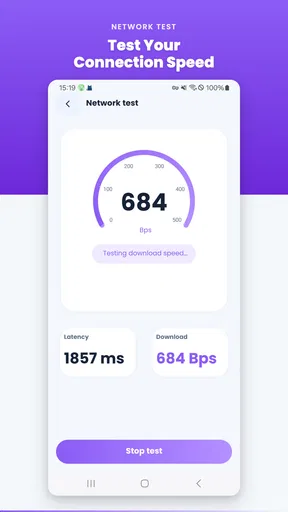
Dedicated battery apps may offer longer-term graphs, charging history, or more detailed interpretation, while file managers are usually better for manually sorting downloads and large folders. Space Cleaner sits between these alternatives. It is convenient and broad, but that breadth means I should not expect the deepest information in any one area.
Small habits that make the app safer and more useful
First, I make a backup or transfer important files before a major cleanup. This is especially worthwhile before reviewing folders that contain camera images, messaging attachments, or work documents. The extra step is not exciting, but it changes an irreversible mistake into a recoverable one.
Second, I use the app as a diagnostic prompt rather than a performance ritual. If storage is low, I identify the largest real cause. If battery life is poor, I compare usage patterns and inspect the hardware warning signs. If audio is muffled, I try the speaker feature once with care and then investigate the physical condition. This prevents unrelated problems from being blamed on “junk.”
Third, I check whether the phone feels different after the action instead of trusting a dramatic-looking result. Does an app open more reliably because storage pressure was reduced? Did the speaker become clearer at normal volume? Is battery endurance actually different across comparable days? These practical checks are more valuable than a colorful score or a promise of instant speed.
Finally, I periodically review Android’s permission page and notification settings. A utility may be useful today and unnecessary next month. Keeping access aligned with current use is a simple way to preserve control, particularly for an app that deals with device maintenance.
My cautious verdict
Space Cleaner is a sensible, accessible maintenance app when I want one place to begin reviewing storage, battery behavior, and speaker condition. I like its focused scope and the fact that it is free to try, and its current version, 9.0.3, makes it a straightforward option for compatible Android phones. The rating of 4.0 from around 105 ratings suggests a generally positive reception, though I would still base my decision on my own workflow rather than popularity.
My recommendation comes with boundaries. I would use it for guided checks, not blind deletion; for battery observation, not diagnosis; and for a cautious speaker-clearing attempt, not hardware repair. I would keep Android’s own controls nearby, review every permission and confirmation, and avoid leaving unnecessary access enabled.
The best reason to install Space Cleaner is convenience with personal oversight. If you want a compact tool that helps you decide what maintenance to perform, it can earn a place on your phone. If you expect a one-tap cure for low storage, worn battery cells, or damaged audio hardware, a system tool, dedicated diagnostic, or repair service will be the better answer.
Pros
- Quickly identifies large and unnecessary files.
- Simple interface makes storage cleanup easy.
- Helps find duplicate photos and videos.
- Displays useful storage usage information.
- Can free space without deleting every file manually.
Cons
- Some cleanup suggestions may require careful checking.
- Scanning can take time on devices with many files.
- Results may include files you still want to keep.
- Extra features may be limited in the free version.
- Performance can vary between older and newer devices.
FAQs for Space Cleaner
What is Space Cleaner, and what does it do?
Space Cleaner is a utility app designed to help identify and remove unnecessary files from an Android or iOS device. Depending on the version and platform, it may scan for cached data, temporary files, duplicate items, large files, old downloads, and unused media. Its main purpose is to make storage management easier, although it cannot replace a complete backup or solve every performance problem.
Is Space Cleaner safe to use on my phone?
Space Cleaner can generally be used safely when downloaded from an official app store and reviewed carefully before confirming any cleanup action. However, users should examine the files selected for deletion, especially photos, videos, documents, and downloads. It is also wise to create a backup first, because removing personal files may be difficult or impossible to undo if they are not stored in cloud storage.
Can Space Cleaner really improve device performance?
Space Cleaner may help when your phone is nearly full, since freeing storage can improve usability and allow apps and system updates to work normally. Nevertheless, it should not be viewed as a guaranteed speed booster. Removing cache or temporary files usually provides limited results, and problems caused by an old battery, outdated software, overheating, or demanding background apps require different solutions.
Does Space Cleaner delete photos, videos, or important files automatically?
Most cleaning tools display categories, recommendations, or a review screen before deleting content, but the exact behavior can vary by version and device. Users should never approve a broad cleanup without checking the selected items. Pay particular attention to duplicate photos, large videos, messaging attachments, and downloads, because an item that appears unnecessary may still be personally valuable.
Is Space Cleaner free, and does it require special permissions?
Space Cleaner may offer free cleaning features while also including advertisements, optional premium tools, subscriptions, or in-app purchases. It typically needs permission to access storage so it can scan files, and some features may request additional access depending on the operating system. Before installing, review the store listing, privacy policy, subscription terms, and requested permissions to avoid unexpected charges or data concerns.


